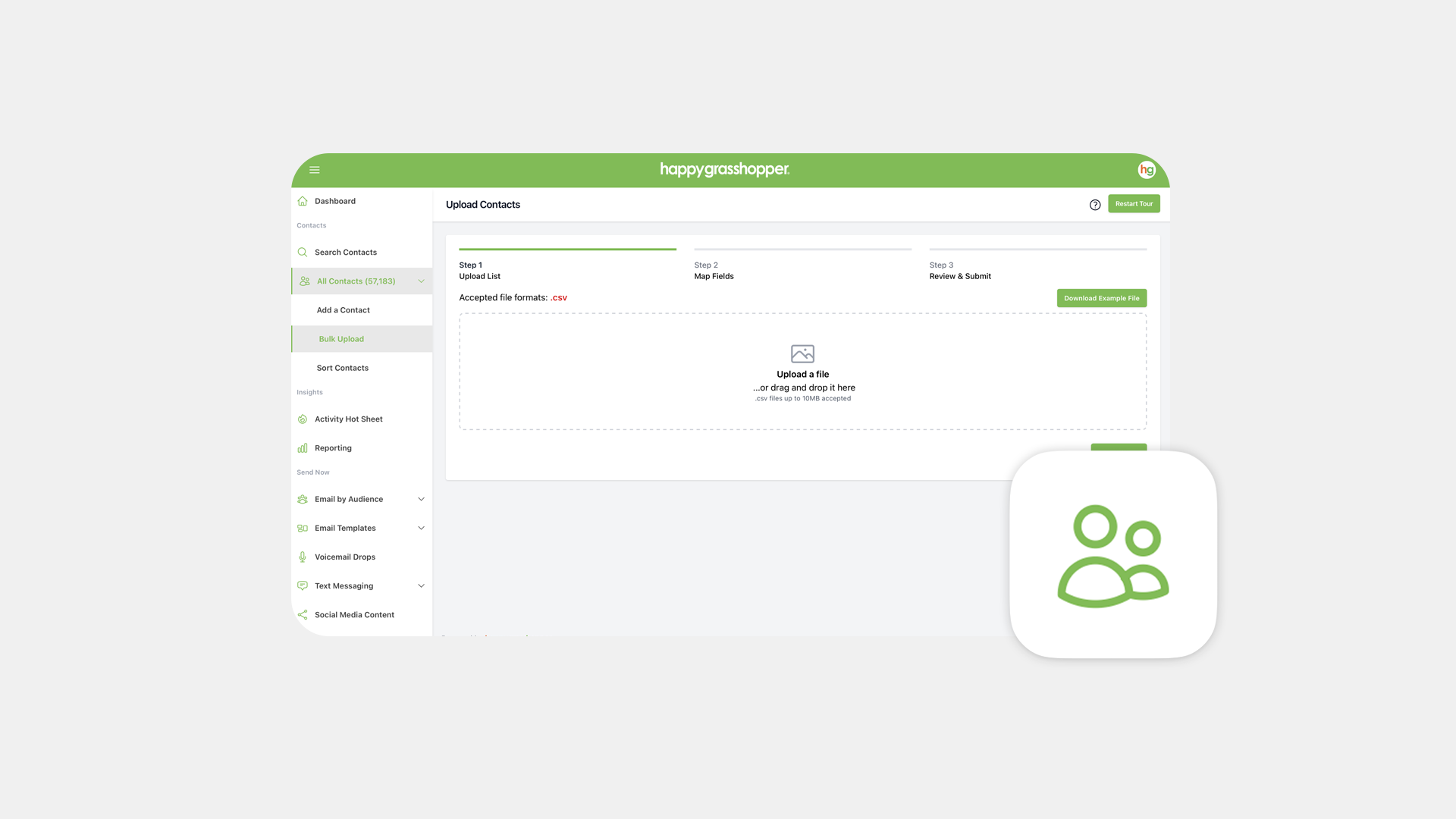
Import Contacts from Your Phone and Email to Happy Grasshopper
COntact Import Guide
Apple / iCloud / iPhone Contacts
-
Go to iCloud.com and sign in.
-
Click Contacts.
-
In the bottom-left corner, click the gear icon > Select All > Export vCard.
-
This downloads a .vcf file, which can be converted to CSV using an online tool.
Google / Gmail / Android Contacts
-
Go to contacts.google.com and sign in with the same Gmail used on your phone.
-
Click Export in the left sidebar.
-
Choose Google CSV or Outlook CSV, then click Export to download the file.
-
If not syncing to Google, open the Contacts app on their phone > Settings > Export > Save to internal storage.
Microsoft / Outlook Contacts
-
Go to outlook.live.com and sign in.
-
Go to File > Open & Export > Import/Export.
-
Choose Export to a file, then Comma Separated Values (CSV).
-
Select the Contacts folder and export.
Facebook Contacts
-
Go to facebook.com and sign in.
-
Go to Settings > Accounts Center > Download your information.
-
Select profile(s) and choose what/how to download or transfer.
-
Click Submit request, then download from Available downloads.
Instagram Contacts
-
Go to instagram.com and sign in.
-
Go to Settings > Accounts Center > Download your information.
-
Select your account, choose what data to download and how.
-
Click Submit request, then download it from Available downloads.
LinkedIn Contacts
-
Go to linkedin.com > Me > Settings & Privacy.
-
Under Data Privacy, choose Download of your data.
-
Select Connections, then request archive.
-
They’ll receive a CSV via email.